
Frequently Asked Questions
Getting started
How do I download the app?
Download Shimoe from the App Store. It works on iPhone and iPad.
Is the app free?
Yes. You can browse, read, and download manga for free. Free users see some ads. Shimoe Pro removes them.
Do I need an account?
No. Shimoe has no login. To move your library to a new device, use a backup code.
Sources
What are sources?
A source is a place that Shimoe gets manga from. Shimoe has several free sources, with labels such as Free A and Free D. Select the source at the top of the Browse page. To search all sources at the same time, use multi search.
What happened to the Pro source, Free B, and Free C?
These sources shut down and we removed them from the app. Chapters that you downloaded from them stay readable offline. To continue reading, migrate the manga to a source that works.
Why is the Browse page empty, or why does manga not load?
- Security check: Some sources ask for a Cloudflare check. Tap Verify Now (Browse), Verify (manga details), or Verify to continue (reader), then try again.
- Blocked by your internet provider: If you see “Can’t reach the source”, use the 1.1.1.1 app or a VPN.
- Source problem: The source can be down or slow. Try a different source, or try again later.
Library
How do I organize my library?
- Categories: Go to More > Categories to add, rename, or remove categories. Each category shows as a tab in the Library.
- Filter, sort, and display: Tap the filter icon in the Library. You can filter by Downloaded, Unread, or source. You can sort by name, total chapters, last read, last update, unread count, or date added.
- Bulk edit: Touch and hold a manga to select more than one. Then you can set categories, mark as read or unread, migrate, or remove them.
How do I check for new chapters?
Open the Updates tab and pull down to refresh, or tap the refresh icon. Shimoe does not check for new chapters in the background.
How do I move my manga to a different source?
Use migration when a source shuts down or when a different source has more chapters. Shimoe moves your read chapters, page position, categories, and reading mode.
- All manga from one source: In the Library, tap the Migrate icon (two arrows) at the top. Select the source, then tap Continue.
- Only some manga: In the Library, touch and hold a manga, and tap the other manga that you want. Then tap the Migrate icon in the bar at the bottom. The manga can come from different sources.
- One manga: Open the manga, tap the menu (three dots), and select Migrate.
For all the steps, refer to the Migration guide.
I moved from another app. How do I mark many chapters as read?
In the manga details page, touch and hold the next chapter that you want to read. Select only that one chapter. Then tap the icon on the right of the bottom bar. All chapters before it become read.

Reading
Which reading modes are there?
Default, Left to Right, Right to Left, Vertical, and Webtoon. Set the default mode in More > Settings > Default Reading Mode. To change the mode for one manga, use the bottom bar in the reader.
The images in Webtoon mode are stretched
Go to More > Settings > Experimental Features and turn on Webtoon Optimizer.
Does Shimoe remember my page?
Yes. Shimoe saves your page for each chapter and opens the chapter at that page.
Downloads
How do I download manga to read offline?
Tap the download button on a chapter in the manga details page. Shimoe Pro users can download a full series at the same time.
Keep the app open while the download runs. You can browse and read other manga at the same time. If you close the app, the queue continues when you open the app again.

Where is my download queue?
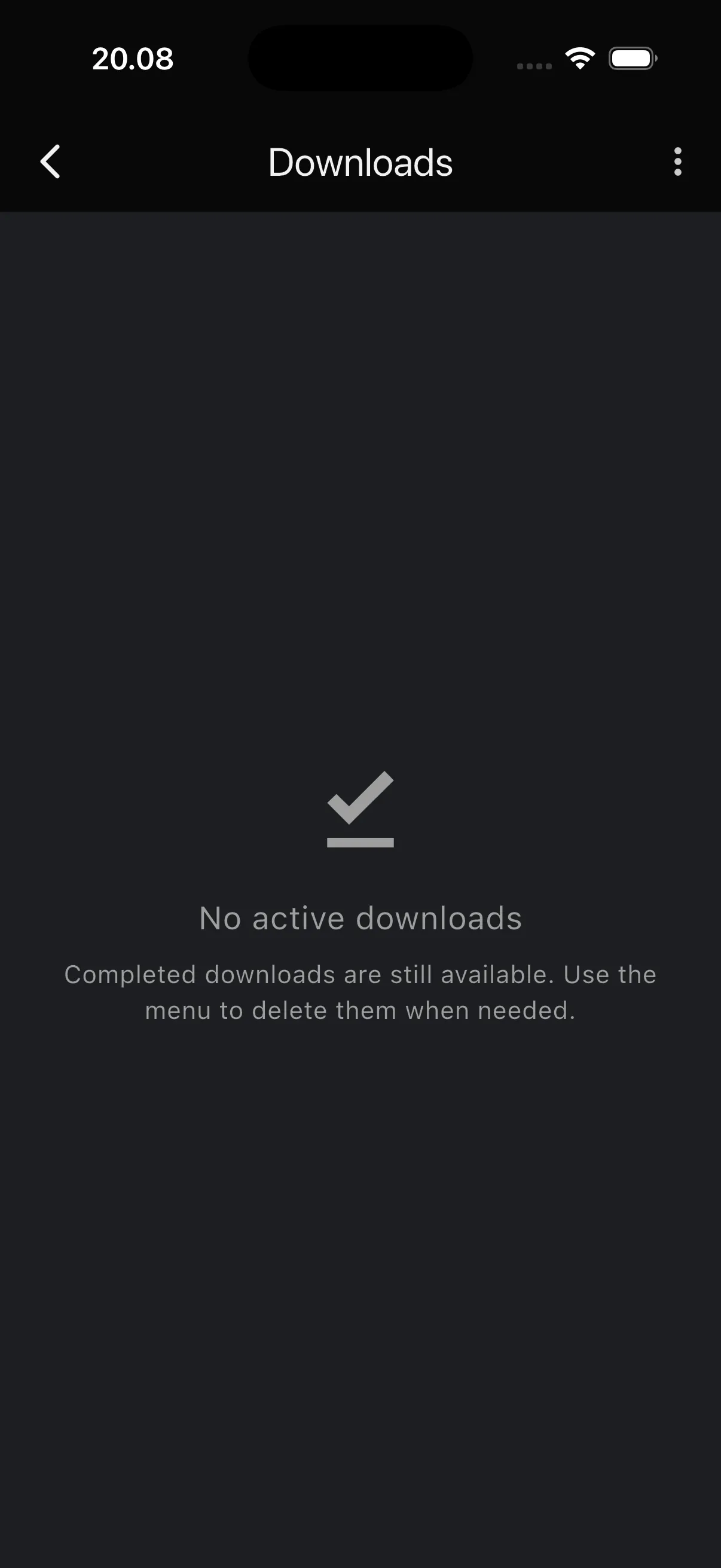
Open the Updates tab and tap the download icon at the top right.

How do I delete downloads?
In the download page, tap the menu (three dots) at the top right. You can cancel the queue or delete completed downloads.


Backup
How do I move my library to a new device?
Go to More > Settings > Backup and Restore. Tap Create Backup on your old device and keep the code. On the new device, enter the code in Restore from Code. For limits and errors, refer to the Backup FAQ.
Can I import my library from Tachiyomi, Mihon, or other apps?
Not at this time. Add the manga with search, then mark the earlier chapters as read to set your progress.
Shimoe Pro
What do I get from Shimoe Pro?
- No ads
- Bulk download of a full series
- Faster downloads
Your subscription also helps us keep the app updated.
How do I manage or restore my subscription?
Go to More > Subscription. If Pro is active, tap Manage Subscription. To restore a purchase on a new device, open Unlock Pro and tap restore.
Is your question not here? Go to More > Send Feedback/Report in the app, or contact us.